Written by Navdeep Soni — Shopify Developer & Founder, Growthpolis, 5+ years of building Shopify apps and running SEO for D2C stores in India. I come with 15+ years of SEO experience. With 6 years of running Growthpolis, we have audited more than 100 stores; more than 3500+ stores are powered by our public apps: Vista Order Editing, Vista Checkout Rules, Vista Bundles & Vista WA Chat Button.
Today I will share my top 12 Shopify SEO tips — the exact ones I used to increase organic traffic by 161% for a Saree Shopify store I work with.
Do you know what the biggest hurdle is when it comes to doing SEO for Shopify stores?
It's the mindset.
A mindset that purely focuses on selling a product.
That's why most business owners fall prey to get-rich-quick SEO schemes — tons of forum links, shady link-building techniques, cheap SEO packages that show up with a shiny daily or monthly report and not much else.
And it's not just store owners. Most SEOs are working with the same selling-first mindset. It doesn't work, and I've watched it not work often enough to be sure of that.
This isn't a full Shopify SEO course. It's the 12 most important things I check on every client audit before I touch anything else — including a few that most “top 10 Shopify SEO tips” posts skip entirely, because they only show up once you've actually worked inside a live store's theme code and Search Console data. These are 12 key things from my master SEO guide that will help you rank on Google. There is a separate guide if you want to get recommended by LLMs.
Due to Google's introduction of core web vitals guidelines, the speed of loading on desktops and mobile devices cannot be ignored; hence, I list it under a prerequisite for any website.
If you're a Shopify store owner and want a second pair of eyes on your site, drop me an email.
Here Are the 12 Shopify SEO Tips You Need to Implement
1. Fix Title Tags and H1s That Are Too Broad or Too Specific
The common mistake: Store owners either go too broad (“Sarees”) or too specific (a title that reads like an internal SKU name). Both fail — the broad one competes against category pages you'll never outrank, and the narrow one doesn't match how anyone actually searches.
The fix: Build the title from three parts: product type + audience/qualifier + location (if you sell locally):
- Silk Sarees in India
- Banarasi Sarees in India
- Casual T-shirts for Men in India
- Sports T-shirts for Men in India
Check the resulting title against Google Search Console's Queries report for that page after a few weeks — you're looking for whether the query terms people actually land on match the phrase you built. If they don't, adjust the qualifier, not the product type.
Developer note: Your title tag also becomes your search snippet, so it's tempting to swap the exact-match keyword for something punchier. I don't recommend it — Shopify re-renders the <title> on every deploy from your theme's SEO field, and I've seen rankings slide within 2–3 weeks after a client swapped a keyword-accurate title for a “cuter” one, because Google re-evaluates relevance based on what's literally in that tag.
2. Don't Build Collections Around Keywords With No Real Search Volume
The common mistake: Creating a collection page because it fits your product catalog, not because anyone's searching for it.
The fix: Pull search volume for the collection's core keyword in a tool like SEMrush before you build the page. As a rule of thumb, if most of your existing collections sit around 5,000 monthly searches and the new one you're planning sits at 200, that's a signal — not necessarily “don't build it,” but “don't expect it to stand alone.”
Developer note: In a genuinely niche category, this rule bends. If your best collection tops out around 400–500 searches a month, a 200-volume collection is still one of your bigger opportunities relative to the category — don't apply a flat volume threshold across every store.
3. Stop Shopify From Creating Duplicate Product URLs Through Collections
The common mistake: Believing you have a duplicate-content problem that needs a canonical-tag fix, when the real issue is usually your internal links, not your canonical tags.
Shopify already sets rel="canonical" automatically, pointing every product page — however you reached it — back to the clean /products/handle URL. That part isn't broken by default.
The fix: The actual leak is in your theme's product-grid snippet (in most themes, product-grid-item.liquid or the Dawn equivalent).
If it links products using
{{ product.url | within: collection }},
every internal link you generate points to the long
/collections/collection-name/products/product-name
path instead of the clean one — which still resolves and still gets crawled, even though the canonical tag says it's not the “real” URL.
Open that file, find any use of | within:, and replace it with plain {{ product.url }} so your internal links point straight at the canonical URL instead of relying on the tag to clean up after them.
Developer note: After making the change, view-source on a few product pages reached from different collections and confirm the internal links in your nav, related-products block, and breadcrumbs all resolve to /products/handle — not just the canonical tag in the <head>. A canonical tag is a hint Google usually follows, not a guarantee; don't rely on it to compensate for bad internal linking.
4. Write Product Descriptions That Answer Pre-Purchase Questions, Not Just Fill Space
The common mistake: A three-line description that restates the product name in sentence form.
The fix: Write to the actual pre-purchase questions — fabric, care instructions, sizing quirks, what makes this variant different from the similar one three rows down. This does double duty: it gives search engines more unique text to index, and it gives shoppers what they need to decide without opening a support chat.
Collection descriptions are more optional, but check what page-one competitors are doing for that same collection keyword — if they've got one and you don't, that's a free signal you're leaving on the table.
5. Add Breadcrumb Navigation
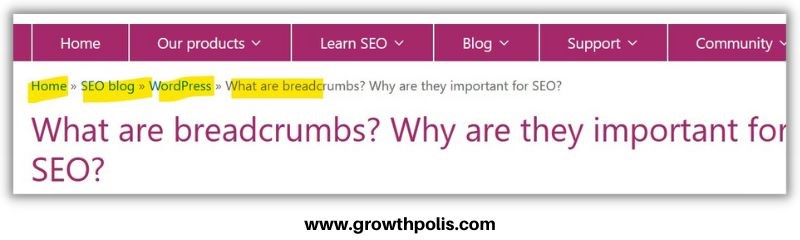
Breadcrumbs do two things at once: they give search engines an explicit hierarchy of how your catalog is organized, and they let shoppers step back up a category without hitting the browser back button. Most Shopify 2.0 themes support breadcrumbs natively in theme settings — check there before hand-coding them.
6. Interlink Blog Content and Product Pages Deliberately
Contextual linking between your own pages helps Google's crawlers understand relationships in your catalog, and helps shoppers find things they didn't think to search for. Product-to-product and collection-to-collection linking only gets you so far, though — the natural opportunities are limited, which is why #7 matters.
7. Build Topical Depth With a Blog, Not Just Product Pages
I get pushback on this constantly. Store owners tell me, “Navdeep, I sell products, I'm not a blogger” — and I get the instinct, but it usually comes from treating blog content as marketing fluff instead of customer-journey content.
If you sell Valentine's Day gifts, these are real, searchable pre-purchase questions:
- How to select a Valentine's Day gift for your boyfriend
- How to select a Valentine's Day gift for your girlfriend
- How to select a Valentine's Day gift for your wife or husband
Link naturally to relevant products inside these posts — it's both an internal-linking opportunity and a way to reach someone who's still figuring out what they want.
8. Fix Duplicate Content From Filter and Tag Pages, Not Just Collection URLs
The common mistake: Most Shopify SEO advice stops at product/collection canonical tags and never mentions the bigger source of index bloat on stores with filterable collections: tag and facet URLs.
Shopify's default robots.txt already blocks combined filter and sort URLs (patterns like sort_by, and two-filter combinations chained together). It does not block a single filter or tag URL on its own — those stay fully crawlable and indexable by default, and on a store with several collections and tags, that can generate hundreds of near-duplicate pages competing with each other.
The fix: Create or edit templates/robots.txt.liquid in your theme code (available on all Shopify plans, not just Plus). Loop over Shopify's default rule groups and append your own Disallow rules for single-filter and tag-combination patterns specific to your store's URL structure — don't replace the whole file, or you'll lose Shopify's own defaults and any future updates to them.
Developer note: If you use a third-party filter app (Boost, Searchanise, and similar), check its URL parameter pattern first — some render filters via JavaScript query strings that don't match Shopify's own default blocking rules at all, meaning your robots.txt edit won't catch them until you add a rule for that app's specific pattern.
9. Handle Out-of-Stock Seasonal Products Without Killing the Page's Ranking History
The common mistake: Reflexively 404-ing or unpublishing a product the moment it sells out, especially for seasonal items you'll restock next year.
The fix: It depends on whether the product is coming back:
- Coming back next season (e.g., a Diwali-specific saree design): keep the page live, clearly mark it “Currently unavailable” or similar on the page, and let it keep collecting the ranking signal it already built. Killing and recreating the page next year means starting from zero.
- Gone for good, but you have a near-identical replacement: use a 301 redirect to the closest matching live product, so the old page's link equity transfers instead of dead-ending.
- Gone for good, no replacement: let it 404, or set it to draft — but only once you're sure it's genuinely discontinued, not just between seasons.
Developer note: A blanket “set to draft whenever out of stock” policy is the most common version of this mistake I find — it looks tidy in the admin, but it resets your ranking clock on a page every single season.
10. Get Your Structured Data to Actually Show a Price Range, Not Just One Price
The common mistake: Assuming Shopify's built-in product schema is complete because it's there by default.
Shopify's native JSON-LD typically outputs a single Offer — usually the lowest-priced variant — rather than an AggregateOffer with lowPrice and highPrice. On a product with real price spread across variants (different sizes, fabrics, or materials), that under-represents the product and can cause Google to treat the displayed price as inconsistent with what a shopper actually sees on-page.
The fix: Run your product template through Google's Rich Results Test on a product that has variants at different prices. If you only see a single offer, either upgrade your theme's schema snippet to output AggregateOffer with lowPrice/highPrice across all active variants, or use a schema app that does this — but check for the next issue first.
Developer note: If you're running a reviews app or an SEO app alongside your theme, view-source and search for "@type": "Product" — it's common to find two competing Product schema blocks on the same page (one from your theme, one injected by an app). Google doesn't merge them; it picks one, often the less complete one, or ignores both. Fix the duplication before you fix the price range, or the second issue will keep masking your first fix.
11. Compress Images Without Losing the Detail That Sells the Product
The common mistake: Running every image through a compressor at maximum compression to chase page speed.
The fix: Compress product images to roughly 75–85% quality — a range that consistently cuts 50–65% off file size with no visible loss on a standard product shot. Don't upload beyond your actual display dimensions either; if your product image slot renders at 640×480px, a 2400×1800px upload is pure waste.
Developer note: For apparel and anything sold on fabric texture or fine surface detail, pushing compression below that ~75–80% range is where store owners start getting complaints about products looking different than the photos — Shopify's automatic CDN conversion to WebP compounds an already-heavy compression setting rather than correcting for it. If you're getting “this doesn't look like the photo” complaints on a specific product line, check your source image compression before assuming it's a lighting or photography problem.
12. Build Backlinks From Sites That Are Actually Relevant to Your Category
Not all backlinks carry equal weight. A link from an established, topically relevant site is worth meaningfully more than a stack of low-quality directory or forum links. Shortcuts here can produce a short-term bump, but Google's systems are specifically built to catch manipulative link patterns over time, and the correction tends to cost more than the shortcut gained.
Pair this with Google Analytics tracking so you can see how paid and organic traffic actually behave differently on your site — it tells you a lot about which channel is doing the real work.
That's the most important 12 things to watch out for, including the two most SEO listicles skip (#8 and #9) because they only surface once you're working inside real theme code and a real Search Console account, not summarizing what's already public.
FAQs Related to Shopify SEO
How do I add an H1 tag in Shopify?
H1 tags in Shopify are usually controlled through theme customization rather than a dedicated setting. If you're not comfortable editing code, a theme or SEO app is the safer route. To do it manually: go to Online Store > Themes > Customize, locate the element that should carry your main heading, and if it's not already wrapped in <h1>, open Edit HTML/CSS, change the tag, save, and preview before publishing. Keep one H1 per page, unique to that page's content.
Do tags on Shopify help with SEO?
Only marginally. Shopify's product/blog tags aren't treated the way meta tags, H1s, or other on-page elements are — their real purpose is organizing and filtering for shoppers. Where they do matter for SEO is indirectly: unmanaged tag pages are exactly the kind of filter URL that can quietly bloat your index (see #8 above). Use tags for navigation, but audit what they're generating in terms of crawlable URLs.
This post is a part of my email letters!
Get Actionable SEO Tips in your inbox
3 thoughts on “12 Shopify SEO Tips That Took One Saree Store from Flat Traffic to +161% Organic”
Comments are closed.