
By Navdeep Soni, SEO consultant and Shopify app developer. Disclosure: I build Vista Bundles, which is mentioned in the section on quantity-based discounts. I also say plainly where it is not the right tool.
Why is my Shopify automatic discount not showing on the product page?
Short answer: Nothing is broken. Shopify calculates automatic discounts in the cart and checkout, so the product page keeps showing the regular price. The fix depends on what kind of discount you run: a flat sale can use the compare-at price, while a discount that depends on how many items are in the cart (“buy 3, save 10%”) needs the tiers displayed some other way, because no single sale price exists to show.
Below: why Shopify works this way, four ways to fix it with the risks of each, and how to choose.
Why does Shopify only apply automatic discounts in the cart?
A product page knows one thing about price: the variant's price and its compare-at price. An automatic discount is a rule evaluated against a cart: which items are in it, how many, how much they cost together, and sometimes who the customer is. Shopify evaluates that rule once there is a cart, and your theme doesn't see the discounted amount on the product page.
That is why the same discount can appear correctly at checkout and be invisible one step earlier. It also explains why discount codes behave the same way: the code is evaluated against the cart as well.
For a simple “20% off everything” sale, a product-page price would be well-defined, and the wish for Shopify to show it is reasonable. For “10% off when you buy 3”, it is impossible: the shopper's price depends on a quantity they have not chosen yet.
How can you show a discount on the product page?
1. Use the compare-at price (best for flat, product-level sales)
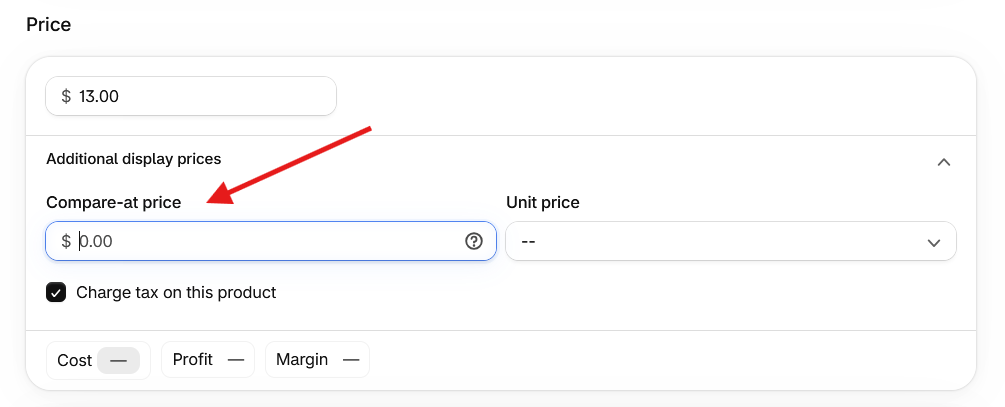
In Shopify admin, open the product, and in the Pricing section, put the original price in Compare at price and the sale price in Price. The product page now shows a strikethrough price, and most themes show a sale badge.
- Works for: a straight percentage or amount off specific products.
- Risk 1, double discounting: if you also leave an automatic discount running for the same products, the shopper gets the sale price and then the discount on top of it. Turn one of them off.
- Risk 2, bulk maintenance: every product and variant needs editing, and again when the sale ends. Use Shopify's bulk editor or a CSV import for large catalogues.
- Risk 3, your theme or Markets settings: if the strikethrough does not appear, check whether your theme or market settings hide compare-at prices.
- Doesn't work for: quantity tiers, cart-total discounts, Buy X Get Y, or customer-specific rules.
2. Hard-code the sale price in your theme (for one fixed sale)
If you do not want to change product prices, you can compute the sale price in Liquid and show it next to the original. A minimal pattern, which assumes one fixed percentage:
{%- assign pct = 20 -%}
{%- assign keep = 100 | minus: pct -%}
{%- assign variant = product.selected_or_first_available_variant -%}
{%- assign sale_price = variant.price | times: keep | divided_by: 100 -%}
<s>{{ variant.price | money }}</s> <strong>{{ sale_price | money }}</strong>- Risk, it can drift: the percentage lives in your theme, not in the discount. When the discount changes or expires, the page keeps advertising the old price unless someone edits the code.
- Risk, variants: this renders on page load. If shoppers switch variants, the displayed price will not update unless you add JavaScript that re-runs the calculation.
- Back up your theme before editing and test it in a duplicate.
3. Probe the cart with JavaScript (workable, but fragile)
Some tutorials add the variant to the cart in the background, read the cart back to see the discounted price, then remove it. It reads the real discount, which is its strength.
- Risk, side effects: background add-to-cart calls can trigger cart drawers, show up as add-to-cart events in your analytics, and skew funnel numbers.
- Risk, flicker: the full price is visible first and then swaps, which looks untrustworthy on a sale page.
- Risk, upkeep: theme updates can break the selectors it depends on.
4. Use an app that displays the discount
Apps exist to render discounts on product pages. Check three things before installing one: which discount types it can display (many cover simple product-level percent or amount discounts, not cart-conditional ones), whether it changes your prices or only displays them, and whether what it shows matches what checkout charges.
What if your discount depends on quantity?
None of the four options above can show “buy more, save more” honestly. Take an $18 coffee bag with 10% off at 3 bags and 15% off at 6 bags:
| Quantity | Discount | Price per bag | Order total |
|---|---|---|---|
| 1 | none | $18.00 | $18.00 |
| 3 | 10% | $16.20 | $48.60 |
| 6 | 15% | $15.30 | $91.80 |
A compare-at price can show only one price per variant. Put $16.20 in it, and single-bag buyers see a price they will not get. Leave it alone, and the product page says nothing about the tiers. The shopper learns about the savings only after adding a single bag to the cart. For the margin maths behind tiers like these, see How to price multi-packs on Shopify.
The workable pattern is a tier table or selector on the product page, backed by a discount that is enforced at checkout, so the displayed price and the charged price cannot disagree.
Where does Vista Bundles fit?
Vista Bundles is built for exactly this quantity case, and only this case:
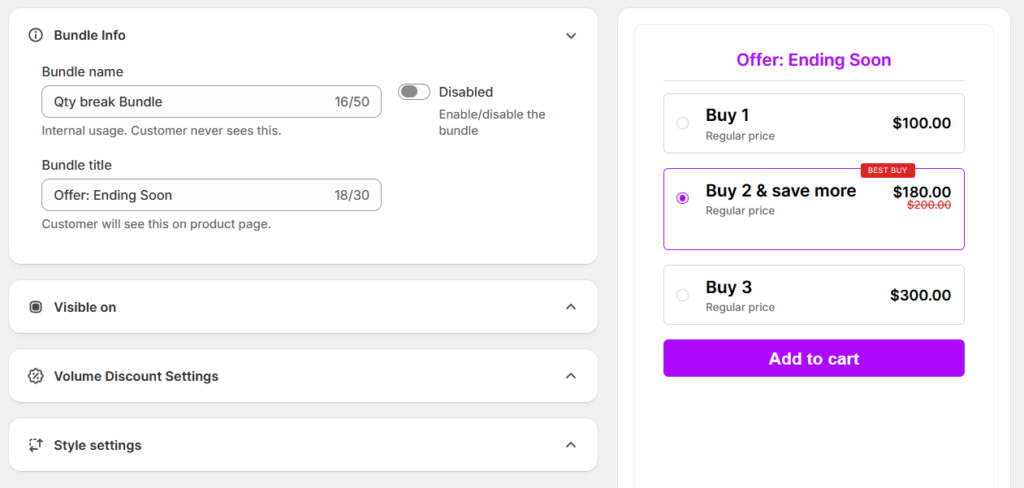
- It shows “buy more, save more” quantity-break tiers on the product page.
- Discounts are enforced at checkout through Shopify Cart Transform and Functions, as well as shown in the storefront, so what the shopper sees on the product page is what they pay.
- It also supports fixed bundles (a set of products at a bundle price), showing the regular bundle total, the discounted total, and the bundle saving.
- It installs as a theme app extension, so you do not edit theme code.
To be clear about its limits: it is not a general “show my sitewide sale price on every product card” tool. If your problem is a flat sale, option 1 is simpler and free. Use Vista Bundles when the discount depends on quantity or on buying a set. Related reading: Quantity break vs. bundle discount: which raises average order value.
Which fix should you choose?
| Your discount | Best fix | Watch out for |
|---|---|---|
| Flat % or amount off specific products | Compare-at price | Double discounting; bulk edits |
| One fixed sale, many products, no price edits | Theme Liquid | Code drifts from the real discount |
| Must read the real discount | JavaScript cart probe | Analytics noise; flicker |
| Tiers by quantity | Tier display on the product page | Check checkout matches the page |
| Buy a set at a bundle price | Fixed bundle display | Show the bundle total, not per-item prices |
FAQ
Why does the discount show in the cart but not on the product page?
Because the discount is calculated against the cart contents. The product page only has the variant's price and compare-at price.
Can I show an automatic discount on collection pages too?
The same limitation applies to collection cards. If you use compare-at prices, most themes show the strikethrough on collection cards as well, which is another reason option 1 suits flat sales.
Will a compare-at price and an automatic discount stack?
Yes, if both apply to the same product, the shopper receives both reductions. Use one mechanism per product.
Do I need Shopify Plus to show discounts on product pages?
No. Compare-at pricing, theme edits, and apps all work on standard plans.
If your discount is “buy more, save more” or a fixed bundle, see Vista Bundles on the Shopify App Store.
2 thoughts on “Shopify Automatic Discount Not Showing on the Product Page? Why It Happens and How to Fix It”
Comments are closed.