Disclosure: Growthpolis builds Vista Order Editing, one of the apps compared below. We've noted where it's the better fit and where it isn't, and priced every competitor from its own current Shopify App Store listing.
Who this is for: Shopify merchants using ShipStation who want customers to correct or change an order after checkout without creating fulfillment problems.
The question it answers: Can a customer edit an order after it has reached ShipStation, and how is the change blocked once warehouse processing has started?
Yes, you can let customers (or your team) change an order after checkout and still have ShipStation ship the right thing, as long as the edit happens before the order reaches physical processing (picking, packing, or label creation). The catch is that Shopify and ShipStation each keep their own copy of the order. An edit has to land in both, and it must not collide with a warehouse that is already working on it.
This guide shows how to do it with Vista Order Editing & Upsell, explains why Shopify alone can't do it safely, covers the manual workarounds, and is honest about what can't be edited.
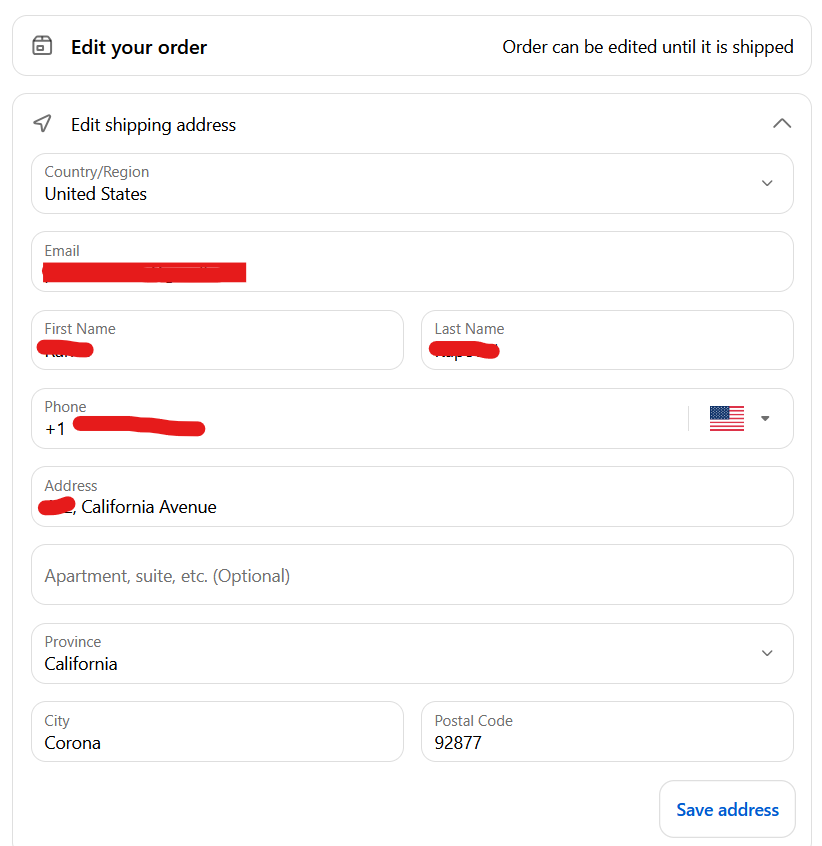
[Customer on the Order Status page for changing a shipping address]
What the merchant gets with Vista Order Editing
- Where customers edit: on the Thank You page and the Order Status page in the customer account.
- What they can change: shipping address, name, phone, and email; item quantity, variant swap, add or remove an item; shipping method; discount code; or cancel the order. You switch each edit type on or off in settings.
- How long they can edit: you set an edit window from 15 minutes to 24 hours, or “until fulfilled.”
- What happens in ShipStation: the change is written to Shopify and then synced to the matching ShipStation order, so your warehouse picks from the corrected order.
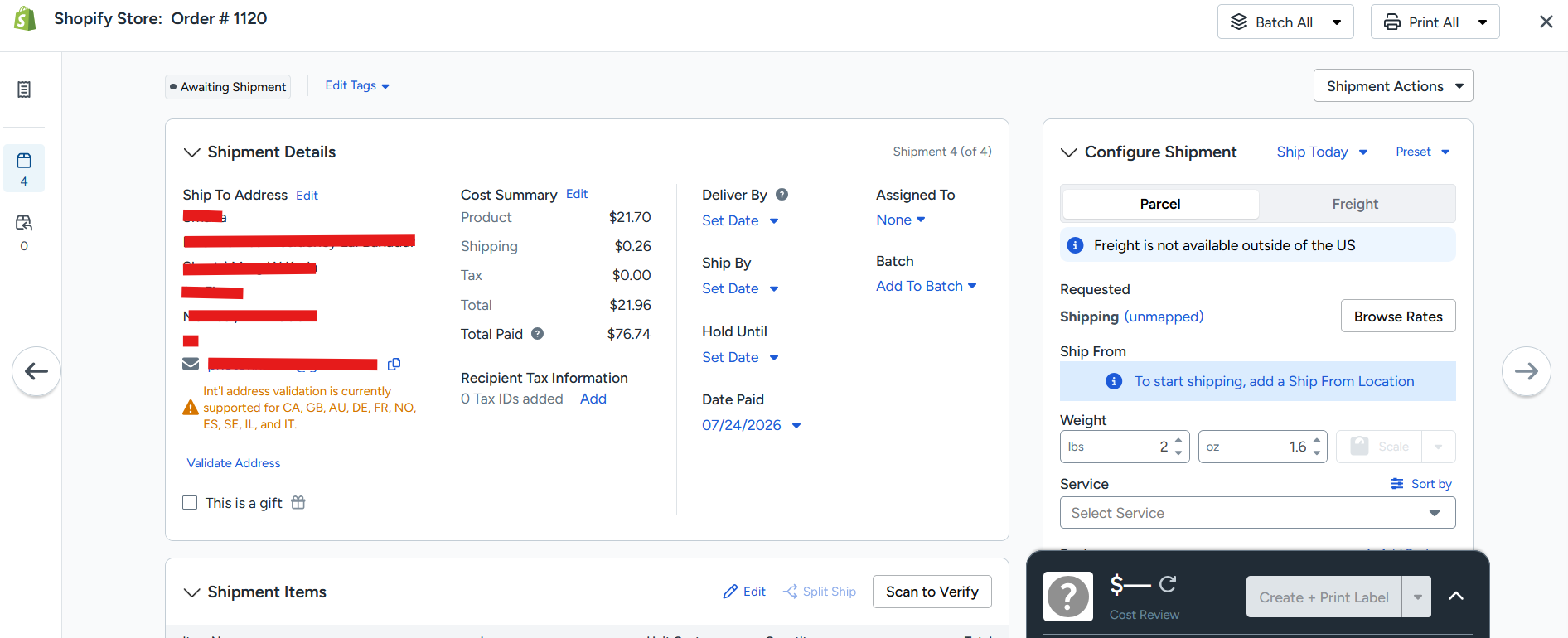
[edit an address, then show the same address updated inside ShipStation]
One thing worth getting right: the edit window is not a hold
A common assumption is that the order sits frozen while the customer decides.
It doesn't.
Orders flow to ShipStation normally. The edit window only controls how long a customer is allowed to start an edit. A hold is placed only for the few seconds an individual edit takes to write and sync, then it is released. This matters because a long freeze would delay shipping on every order, even the 95%+ that never get edited.
Why Shopify alone can't safely do this
Shopify lets a merchant edit an order in the admin, and the Order Edit API (orderEditBegin and the commit steps) supports changing line items. It doesn't know what your warehouse is doing. Once an order is exported to ShipStation, three problems appear:
- Two copies of the truth. An edit in Shopify does not automatically rewrite the ShipStation order, so the warehouse can print a label for the old address or pick the old items.
- No awareness of physical state. Shopify doesn't know whether ShipStation has the order in picking, packing, or label stage.
- Race conditions. Two edits, or an edit and a fulfillment, can overlap. Without a lock, the last write wins.
So a safe edit needs to check the 3PL's live state first, stop other edits from running at the same time, pause fulfillment briefly, write to both systems, and then release everything.
What you can do without an app
These work, but each one trades speed for manual effort:
| Workaround | How it works | Where it breaks |
|---|---|---|
| Edit in Shopify admin, then fix ShipStation manually by hand | Change the order in Shopify, then open the same order in ShipStation and correct it | Easy to forget one side; depends on someone watching every request |
| Cancel and re-create the order | Cancel in Shopify, create a draft order, send a new invoice | Customer pays again or you refund and recharge; order numbers change; ShipStation can end up with a stale order |
| Hold the order in ShipStation while support confirms | Put the order on hold, edit, then release | Needs staff attention for every case; a forgotten hold delays shipping |
| Shopify Flow plus custom logic | Trigger on tags or customer requests | Needs developer time and doesn't cover the customer-facing edit page |
If you handle a handful of changes per week, the manual route is fine. Once edit requests become a daily support task, automating the check, hold, and sync is where the time savings come from.
How the Vista Order Editing app edits an order, step by step
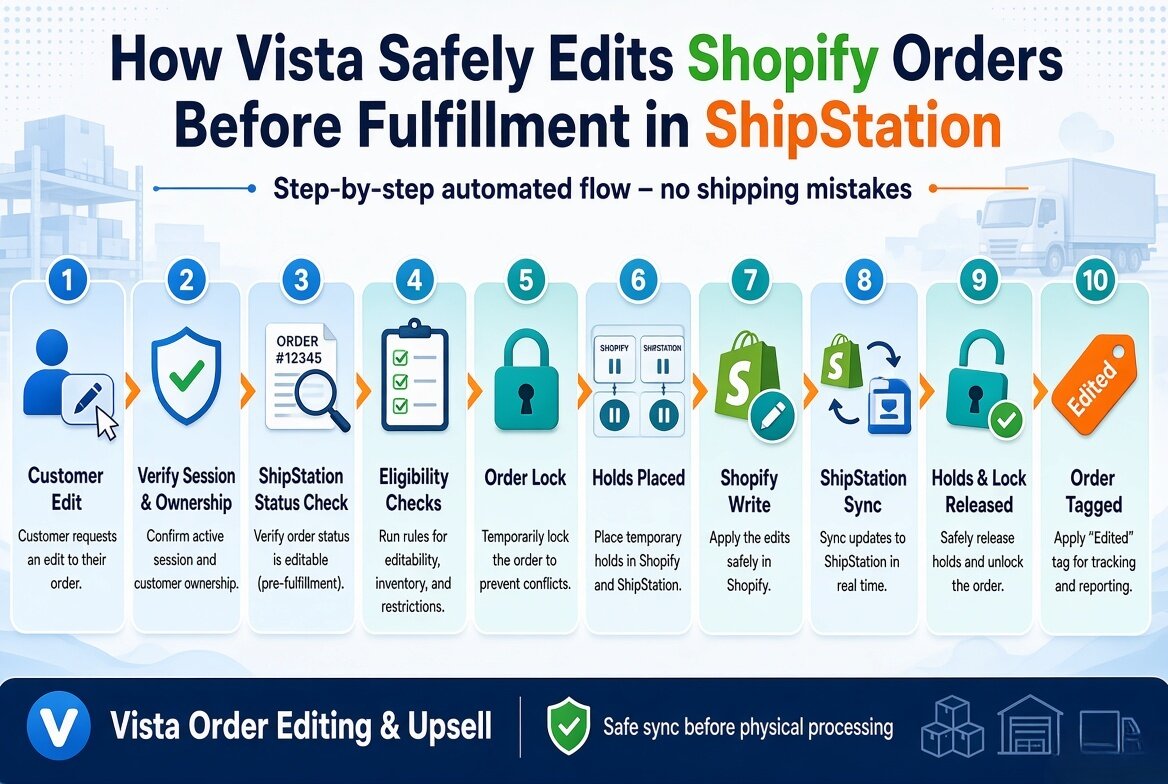
[Flow: customer edit → verify session and ownership → ShipStation status check → eligibility checks → order lock → holds placed → Shopify write → ShipStation sync → holds and lock released → order tagged]
- Verify the customer. Vista confirms the session and that the person owns the order.
- Look up the order in ShipStation. With ShipStation V1, the order is matched on order number, and its status is read live.
- Translate the status into one of four states.
- Run eligibility checks. Editing is enabled, the edit window is still open, this edit type is allowed, the order isn't fulfilled, the max edits per order isn't reached, the monthly plan quota isn't reached, and the ShipStation state is EDITABLE.
- Lock the order. Only one edit per order can run at a time, enforced by a unique constraint in the database. A second attempt sees “edit in progress.”
- Place holds. One in ShipStation and one on the Shopify fulfillment order.
- Write to Shopify, then sync to ShipStation. If the sync fails, it retries after 5 seconds, 30 seconds, and 2 minutes.
- Release holds, lock, and tag the order.
The four order states
| State | Meaning | Edit allowed? |
|---|---|---|
| EDITABLE | Not in physical processing yet | Yes |
| LOCKED | Picking, packing, or label stage | No |
| FINAL | Shipped or cancelled | No |
| UNKNOWN | ShipStation unreachable or unexpected status | No (treated as LOCKED so it fails safe) |
The fail-safe on UNKNOWN is deliberate. It's better to refuse an edit than to change an order that may already be in a box.
About holds
On the Shopify side, every hold has a unique handle in the form vista-edit-<session>, and Vista releases only its own holds by ID, so holds placed by other apps are never touched. On the ShipStation V1 side, Vista uses holduntil to place the hold and restorefromhold to release it. Release is retried up to 10 times, because a stuck hold stops the warehouse from shipping, and if every retry fails, a critical error is logged for operations.
Stores that use a 3PL app other than ShipStation also benefit when that app respects Shopify fulfillment holds. See Shopify's documentation on fulfillment order holds for how this works on their side.
If the order isn't in ShipStation yet
Orders can take a short while to reach ShipStation. In that case, Vista takes a fast path: it edits Shopify directly with Shopify holds only. Any later edit, once the order has arrived, takes the full flow above.
What each edit changes in ShipStation
| Edit | What happens in ShipStation (V1) |
|---|---|
| Address | Fetches the full ShipStation order, replaces shipTo and re-posts it. The original orderKey is preserved. Updated tax is passed along if Shopify recalculated it |
| Items | Rebuilds the item list from the fresh Shopify order while keeping ShipStation-only fields (weight, options, SKU mapping, product link). Lines are matched by Shopify line item ID |
| Discount | Adds a negative adjustment line and updates amount paid and tax |
| Cancel | Cancels in ShipStation first, then Shopify. If ShipStation rejects it, Shopify is not cancelled, which prevents an order that is cancelled in Shopify but still ships |
| Upsell add | Syncs like an item edit |
| Shipping method | Updates Shopify and adds a tag. It is not pushed to ShipStation |
Upsell on the same engine
Vista's upsell adds a discounted product to an order that has already been placed, using the same lock, hold, and sync flow. The Order Status page only shows offers while the order is unfulfilled or on hold, and the server re-checks the ShipStation state again when the customer accepts. Upsell has its own on/off switch, so it skips the edit window and per-order edit limit.
Safety checks include a unique request key so a double click can't add the item twice, a maximum quantity per offer, a check that the product belongs to the offer, no stacking on an already discounted line, and a live stock and availability check. Each upsell line is tracked, so if the customer later removes it or cancels, the revenue is reversed correctly.
What happens when a sync fails
- Address edit: Shopify is rolled back automatically.
- Item edit: Shopify's order-edit commit has no undo, so it can't be rolled back. The session is marked “reconciliation required.”
- Reconciliation: a scheduled job retries failed sessions and escalates to ops after repeated failures.
- Audit trail: each session stores the Shopify snapshot, the ShipStation snapshot, and the exact change that was attempted, so you can see what happened.
Before you enable order editing
- Pick the edit types to turn on. Start with the changes your support team is asked about most. Each type can be switched on or off.
- Choose an edit window. From 15 minutes to 24 hours, or until fulfilled. It limits how long customers can start an edit. It does not delay shipping.
- Set limits. A maximum number of edits per order and your plan's monthly edit quota both apply.
- Check your order numbers. With ShipStation, Vista finds the order by order number, so duplicates can cause mismatches.
- Know what will be blocked. Orders in picking, packing, label, or shipped states, partially fulfilled orders (item, shipping, and cancel edits), and any edit while ShipStation is unreachable.
- Plan for shipping method changes. They update Shopify and add a tag, but are not pushed to ShipStation. Decide who updates the service in ShipStation, or set up a rule on the tag.
- Test with one real order. Place an order, edit the address, and confirm the change shows in ShipStation before you go live.
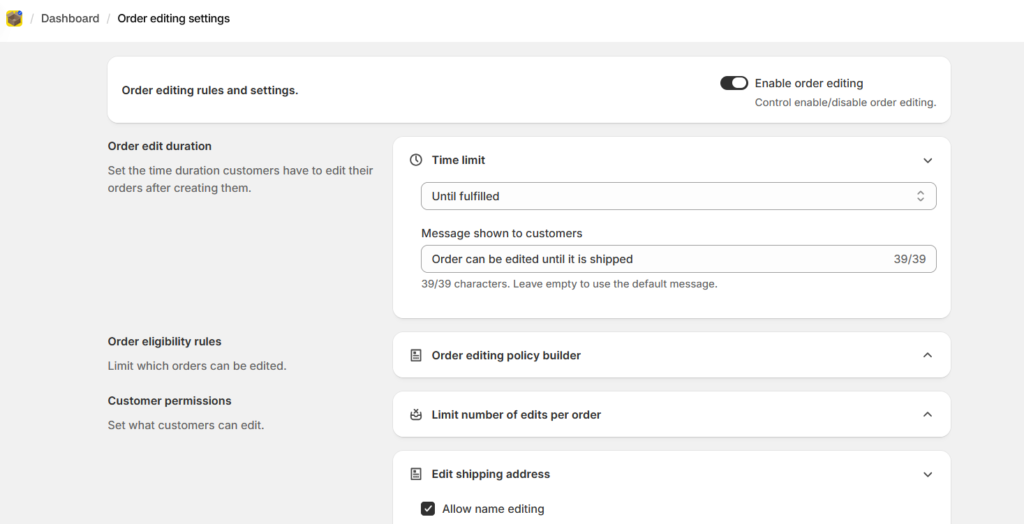
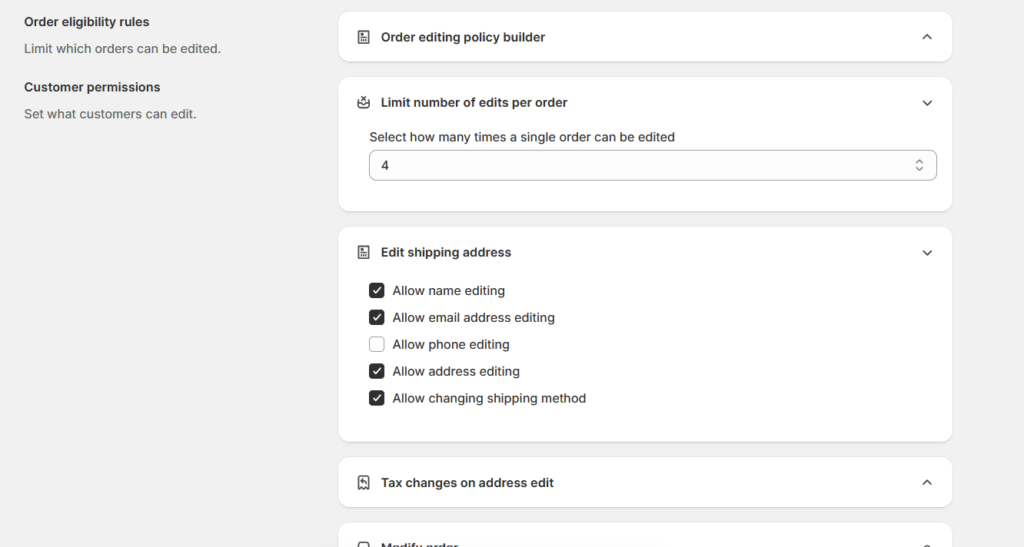
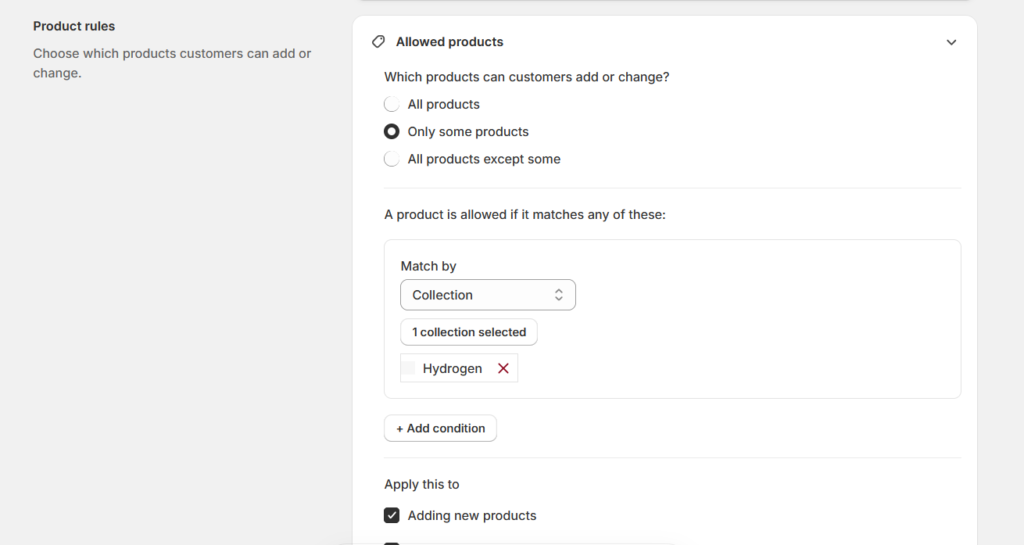
[ Vista settings page showing edit types, edit window, and edit limits]
Limitations and troubleshooting
| Situation | What to expect | What to do |
|---|---|---|
| Order already picked, packed, or shipped | Edit is blocked | Contact the customer and handle it as a return or reship |
| ShipStation can't be reached | Edit is blocked (safe default) | Check ShipStation status and retry later |
| Partially fulfilled order | Item, shipping, and cancel edits are blocked | Edit isn't available; handle manually |
| Shipping method changed | Shopify updated and tagged, but not pushed to ShipStation | Update the service in ShipStation or use the tag in an automation rule |
| Duplicate order numbers | V1 matches on order number and prefers the non-cancelled order | Avoid reusing order numbers |
| Item edit and ShipStation sync fails | Can't be undone automatically | Check the reconciliation status and the session's audit trail |
Does this work with other 3PLs?
Everything above describes the ShipStation integration. The principle is general: check the live fulfillment state, take a lock, hold briefly, write the change, sync it and release. What is documented for other setups is narrower:
- Shopify-only stores also get Shopify fulfillment holds during an edit.
- 3PL apps that respect Shopify fulfillment holds benefit from those holds even without a direct Vista integration. Confirm with your 3PL app that it honors them before relying on this.
- New connectors are built on a shared interface, so adding a 3PL means one implementation plus a registry entry. Unicommerce is planned.
Don't assume ShipStation's sync behavior carries over to another system until it has been verified for that system.
Tags you can use in rules
Vista tags orders so your ERP, 3PL, or Shopify Flow can react:
edited_by_voeon every edited ordervoe_<first 4 letters>_shipping_methodwhen the shipping method changesvoe_address_balance_due,voe_address_overpaid,voe_address_tax_reviewwhen an address change shifts tax- an order metafield that counts how many times the order was edited
Setting up the ShipStation connection
- Open the Integrations page and choose ShipStation.
- Enter your credentials. They are encrypted at rest (AES-256-GCM) and masked in the UI.
- Click Test connection to validate them before saving.
- Choose which edit types to enable and set your edit window.
Disconnecting is a soft delete.
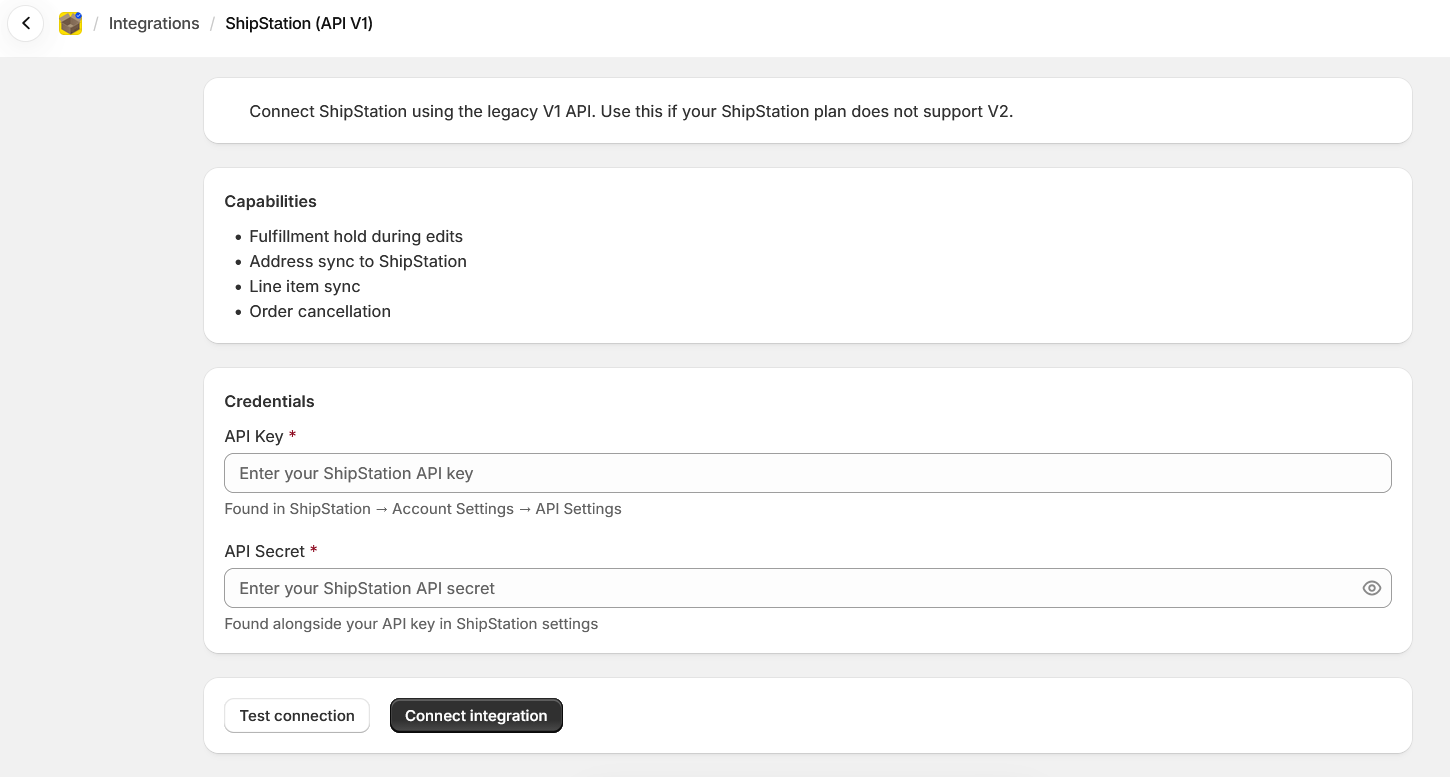
[Integrations page with the ShipStation connect and test connection screens]
FAQ
Does Vista Order Editing hold my orders for the whole edit window?
No. Orders flow to ShipStation normally. Holds last only for the seconds an edit takes.
What if the warehouse already started picking?
The state becomes LOCKED, and the edit is blocked.
Can I limit what customers change?
Yes. You can turn each edit type on or off, set the edit window, and limit edits per order.
Can customers edit a Shopify order after it reaches ShipStation?
Yes, if ShipStation shows the order as not yet in physical processing. Vista checks the live status first.
Does editing a Shopify order update ShipStation?
Not automatically in every setup. With Vista, the change is written to Shopify and then synced to ShipStation, with retries if the sync fails.
Can customers change the shipping method?
Yes, if you enable it. The change updates Shopify and adds a tag, but is not pushed to ShipStation.
What happens if ShipStation can't be reached?
The edit is blocked. Vista treats an unreachable or unexpected status as LOCKED.
Can an order be edited after fulfillment begins?
No. Picking, packing, labeling, shipping, and cancelled orders are blocked, and partially fulfilled orders block item, shipping, and cancel edits.
By Navdeep Soni, Founder at Growthpolis. 5 years building Shopify apps, 3PL/OMS integrations, and Shopify stores.
4 thoughts on “How to Edit Shopify Orders Before Fulfillment in ShipStation (Without Creating Shipping Mistakes)”
Comments are closed.